

Adobe Acrobat Made Easy 3 PDF Tips for Everyday Business Use
corpacer / / Acrobat / October 13, 2023
In today’s fast-paced world of business, effective management and seamless communication are paramount.
In this guide, we delve into three fundamental yet powerful PDF tips within Adobe Acrobat, tailored to optimize routine business workflows. From the seamless editing of images and texts to the creation of interactive digital forms and the art of preserving formatting during export—discover how mastering these key techniques can elevate your efficiency and lend a professional touch to your everyday business endeavours.
Tip 1: Editing Elements
No matter how confident we are in the final product, there’s always a chance for last-minute edits or additions. Acrobat places the power to enact these changes directly in your hands.
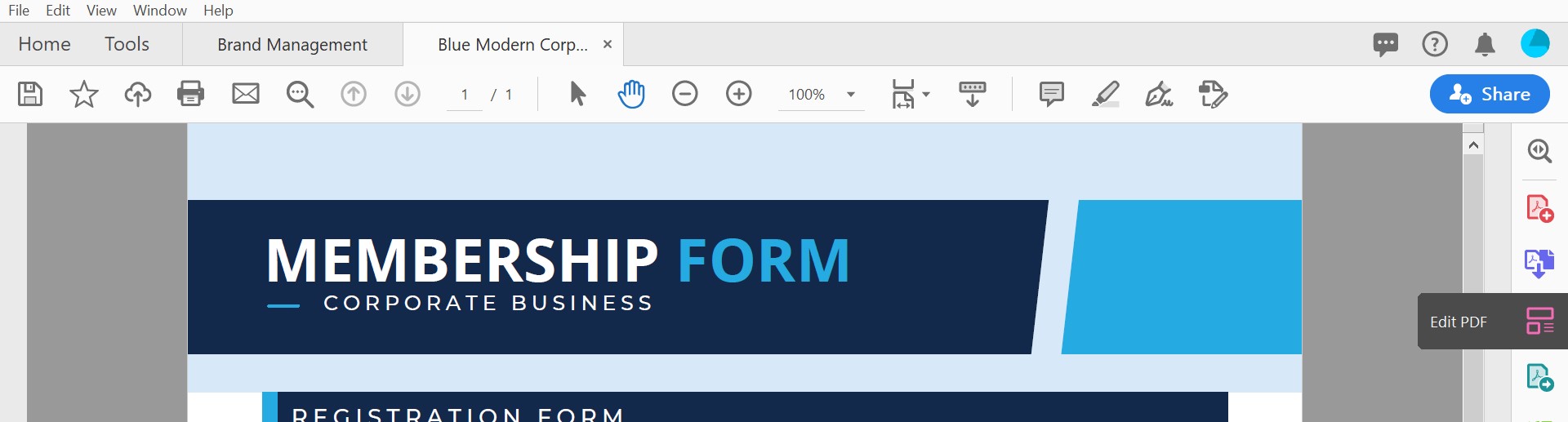
Using the Tools > Edit PDF Panel, you can modify any images or texts within your PDF documents.
Editing Images
Streamline your document editing process by right-clicking on an image or multimedia element and making precise adjustments to fit your requirements. Explore functions like editing in your preferred software, rotation, flipping, cropping, alignment, and layer control for a seamless image editing experience.
Editing Texts
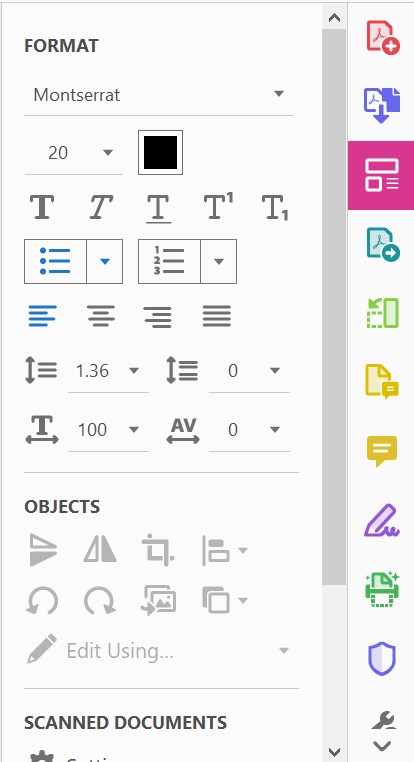
Highlight and right-click on your content, then navigate to the Format Panel to modify existing content and give your text a professional touch that aligns with your document’s design and purpose. Enhance your document’s readability and presentation by customizing text properties such as font style, size, colour, alignment, spacing, and more.
An Extra Tip
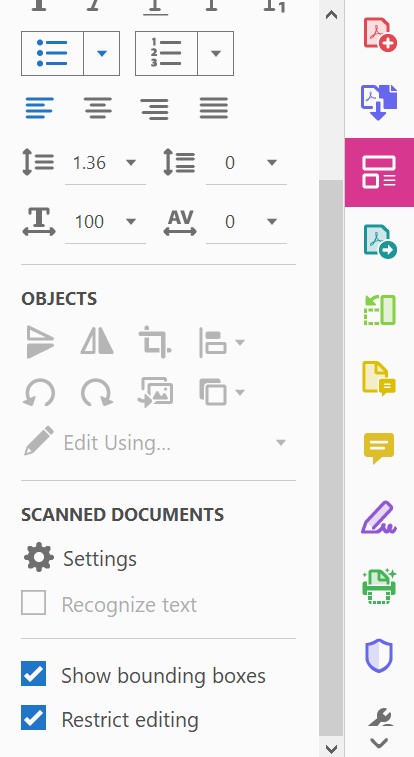
Safeguard your document’s integrity by checking the Restrict Editing feature in the Edit PDF tools panel. Set a secure password to prevent unauthorized alterations, ensuring your document remains intact and in its intended form.
Tip 2: Creating Digital Forms
In today’s digital landscape, the efficient collection and processing of data stand as vital pillars of successful business operations. Adobe Acrobat’s interactive forms streamline data gathering, replacing traditional paper forms with a dynamic, error-reducing digital solution. These forms enhance accuracy and uniformity, accelerating productivity and operational efficiency.
- Set up the framework of the form through applications such as Microsoft Word, Adobe InDesign, Canva etc.
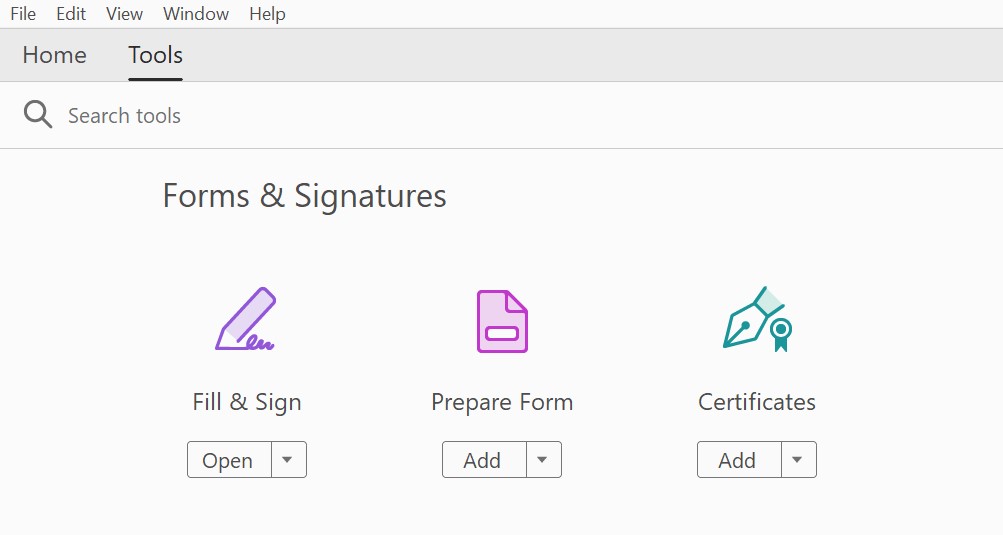
- In Adobe Acrobat, go to Tools > Prepare Form. Select a file or scan a document. Check the box for Signatures if it applies.
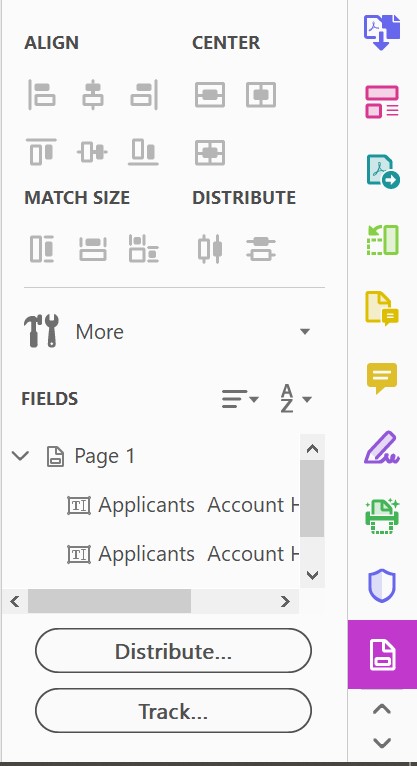
- After the form wizard runs, you can modify it by adding or deleting fields using tools in the form panel on the right. The Prepare Form ribbon includes form fields, such as a text box, checkbox, dropdown, radio button, and signature.
- To ensure a smoother user experience, you can also organize the order of fields by dragging your fields into order in the Fields panel on the right.
- Test your form’s functionality by previewing it with sample data.
- Once satisfied, save the fillable PDF and distribute it via email, Document Cloud, or other platforms. Utilize the Request Signatures option to streamline the signature process, ensuring your form is ready for responses in any format you choose to share.
Tip 3: Retaining Formats When Exporting
Have you ever felt the frustration of exporting a document, only to witness an unexpected shift in its carefully arranged layout?
In the dynamic landscape of the business world, collaboration with diverse teams often demands flexibility in document formats. This is where Adobe Acrobat’s prowess truly shines, allowing you to export PDF files to fully editable Microsoft Word, Excel, or PowerPoint documents, all while preserving the original layout and text flow. This capability allows you to effortlessly share documents with your editing teams, promoting seamless collaboration across various devices and operating systems.
Exporting PDF
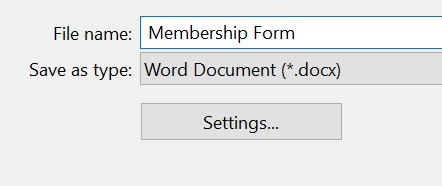
- Either choose File > Export To or choose Tools > Export PDF
- Choose any one of these formats:
- Microsoft Word (DOCX)
- Spreadsheet (XLSX or XML)
- Microsoft PowerPoint (PPT)
- Image (JPEG, TIFF, or PNG)
- HTML Web Page (HTML)
- Others: Rich Text Format (RTF), Encapsulated Postscript (EPS), or Text (TXT)
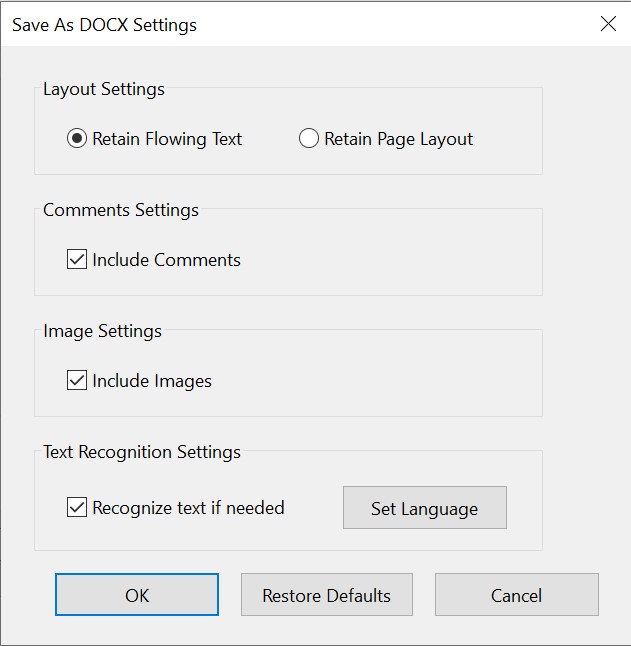
- Click on the Settings button or Gear Icon that appears and choose the export options that best fit your needs. These time-saving Export Options provide you with export flexibility and give you choices focused on your document needs:
- Retain Flowing Text: This option prioritizes the ability for text to wrap and flow seamlessly throughout the exported document.
- Retain Page Layout: Choose this option when you would like your newly-exported document to stay in the same layout as your PDF. This option may split the text into different text box groups to retain the original design.
- Include Comments: This option is useful when you have sent the document out for review, and others have provided feedback. All comments are kept with the file and exported as well.
- Include Images: You have the option to choose to export your document with or without images from your PDF. Exporting without images can be useful when you only need the text from the PDF.
- Recognize Text: Recognize text is useful when you are converting a scanned document. This option will walk you through the process of analyzing your file for content before saving it to the desired format.
In conclusion, Adobe Acrobat stands as an unparalleled toolset, empowering professionals to revolutionize their document workflows and excel in the fast-paced realm of business. The ability to seamlessly edit images and text, design engaging digital forms, and retain document formats during export presents an unmissable opportunity.
Embrace the future of document management with Adobe Acrobat today. Your enhanced productivity awaits!
To subscribe into Adobe Creative Cloud, kindly send your inquiries to us now!
1,588 total views, 1 views today